

User Guide
A step-by-step tutorial to generate your first XML report.
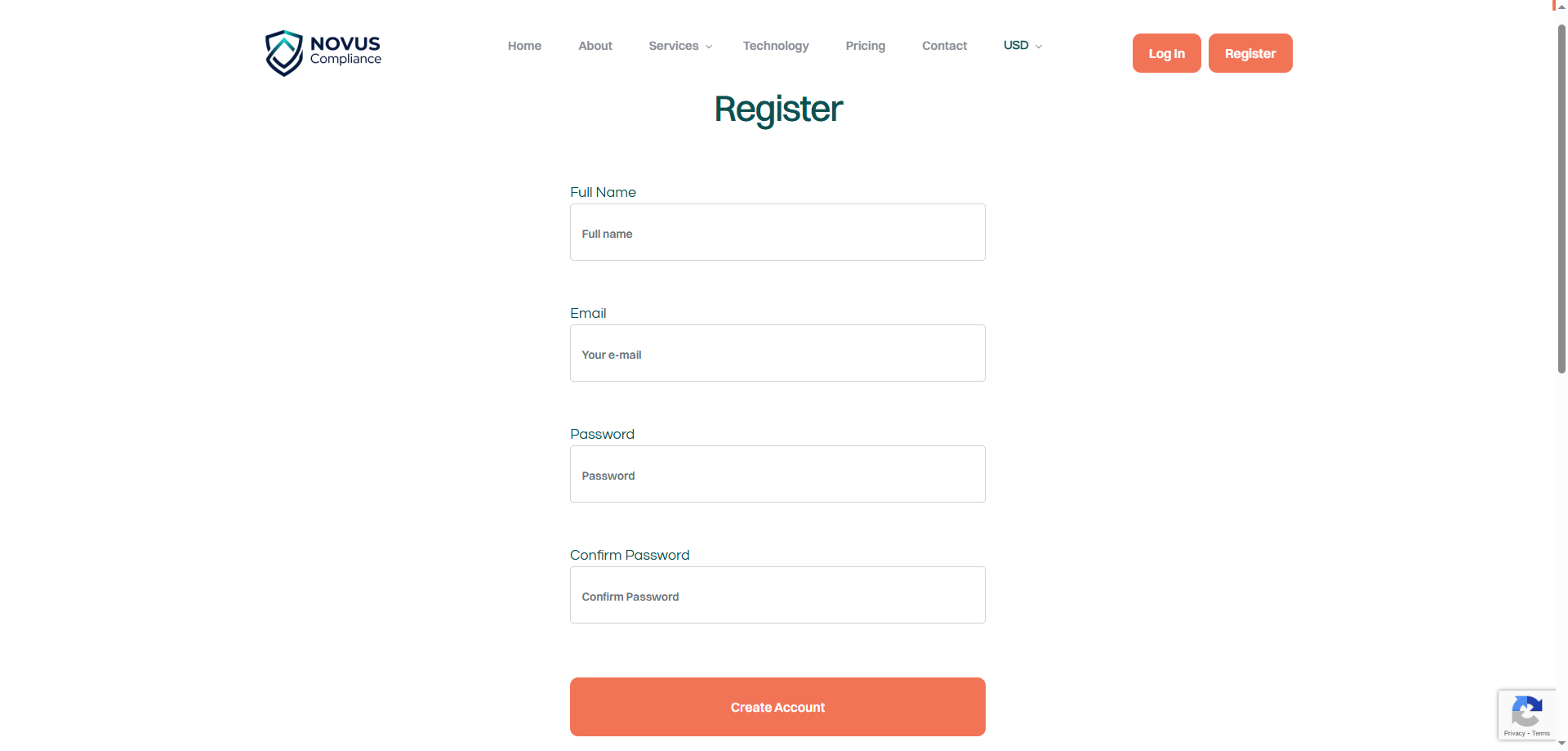
1. Register Account
Visit the registration page and sign up using your professional email address. Create a strong password to secure your compliance data.
2. Verify Your Email
Check your inbox for a verification link. You must verify your email before you can log in for the first time.
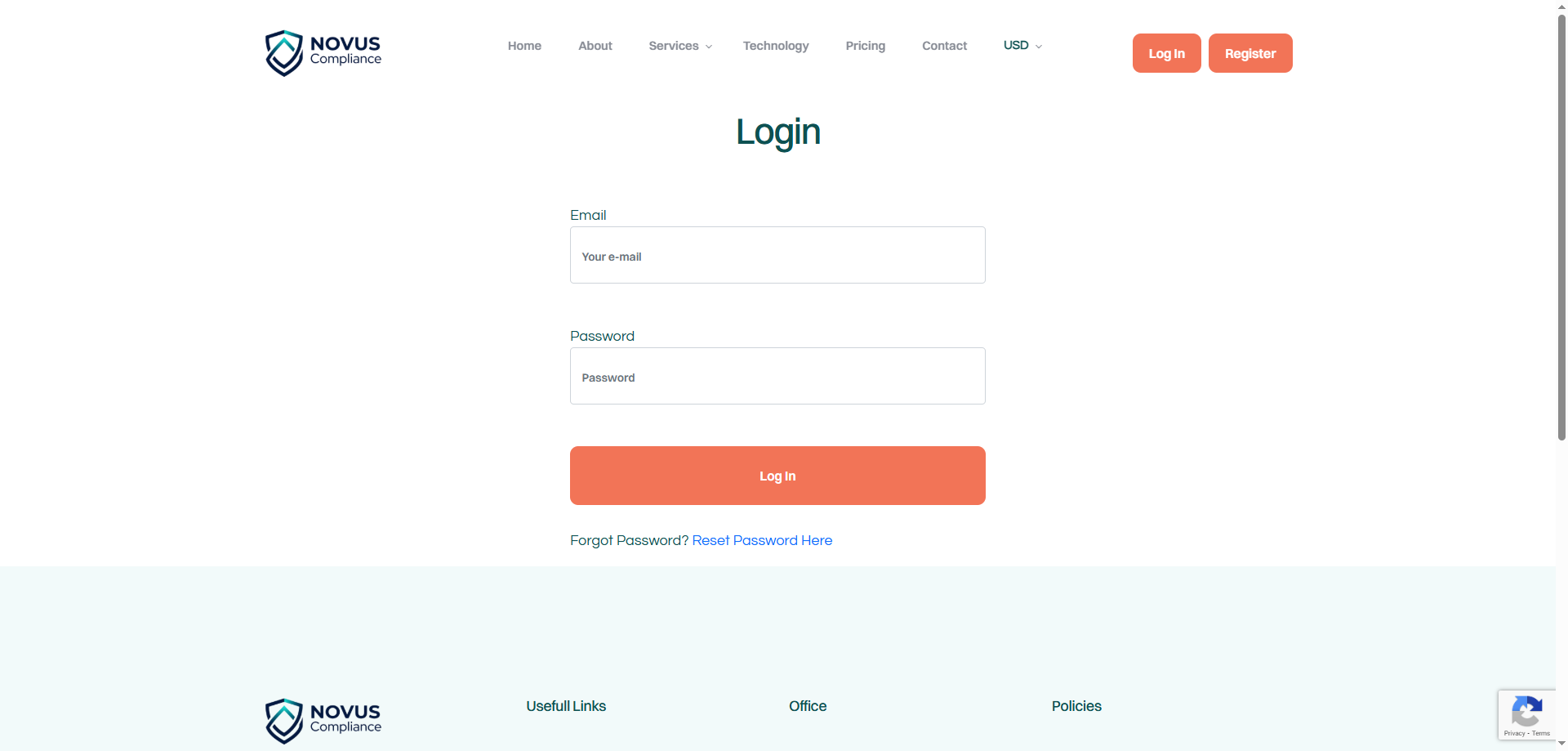
3. Login to Dashboard
Use your verified credentials to access the Novus Compliance secure dashboard.
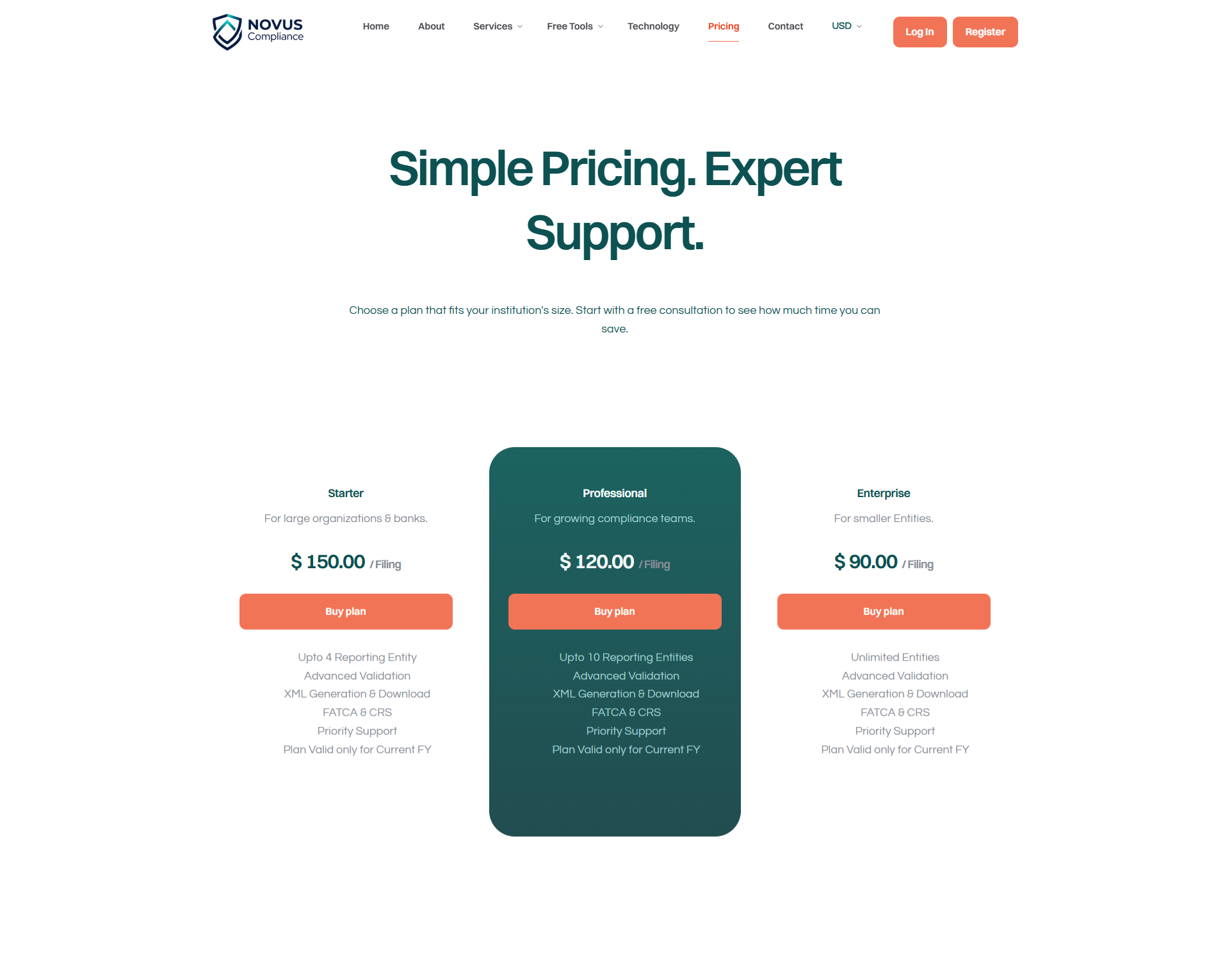
4. Select a Pricing Plan
Navigate to the Subscription or Pricing tab. Choose a plan that matches the number of entities you need to report for.
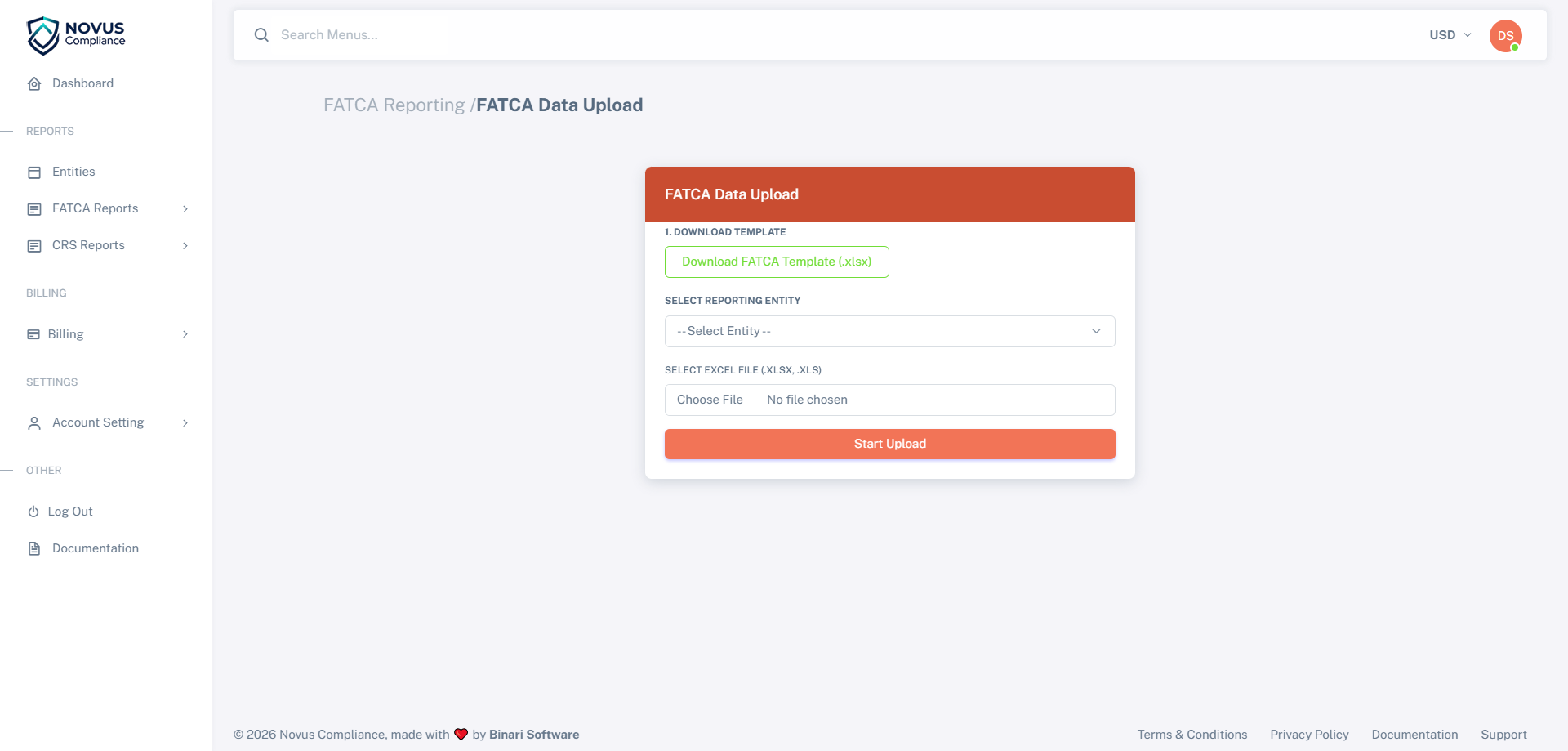
5. Download Excel Template
Go to the Downloads section. Select the correct template for your reporting needs:
- FATCA Template: For US reporting. Download FATCA Template
- CRS Template: For OECD/Global reporting. Download CRS Template
6. Fill Data in Excel
Open the downloaded Excel file and fill in your account holder data.
For Reporting Entities (Sponsor/Filer)
If you are the Reporting Entity, locate the 'SE Name' and 'SE ID' columns in the template. Replace the default placeholder text with your actual Entity Name and GIIN. If you are reporting on behalf of someone else, leave these fields as they are.
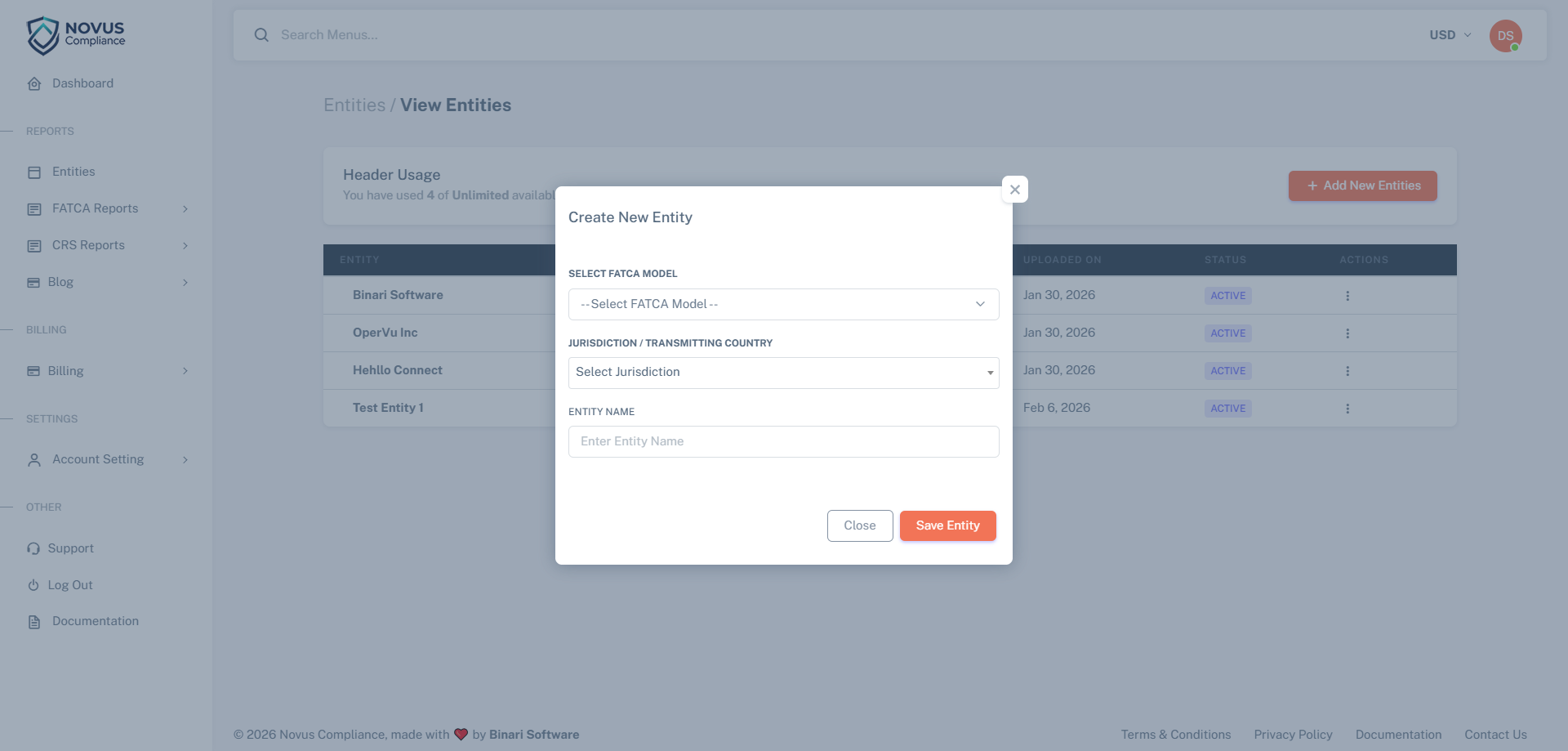
7. Create New Entity
On your dashboard, click "Add Entity". Select the reporting model appropriate for your jurisdiction:
- FATCA Model 1: You report to your local tax authority.
- FATCA Model 2: You report directly to the IRS.
- CRS: Common Reporting Standard.
- Jurisdiction or Transmitting Country.
8. Upload Data
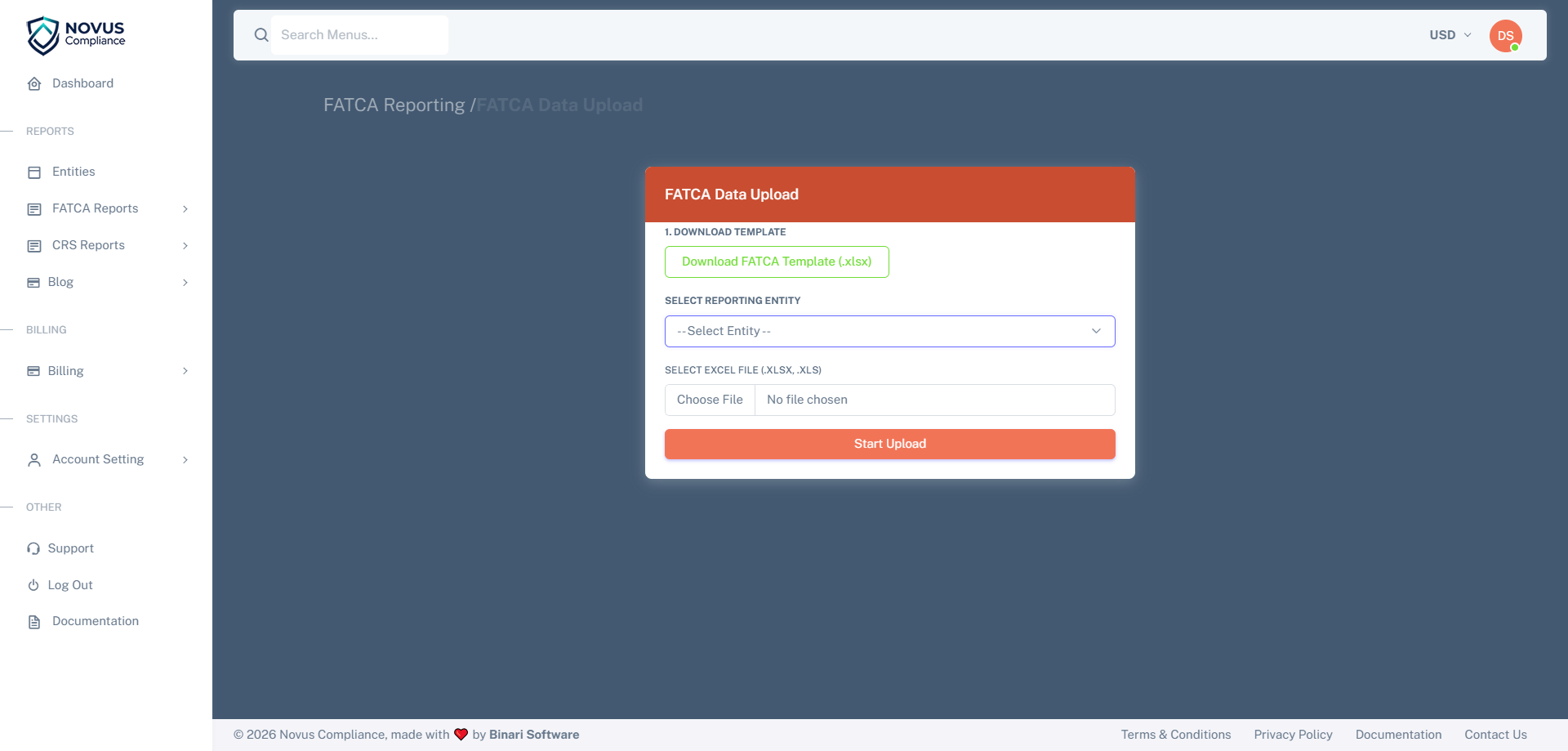
Go to your newly created entity. Click "Upload Data" and select your completed Excel file. The system will now import your records.
9. Validate XML
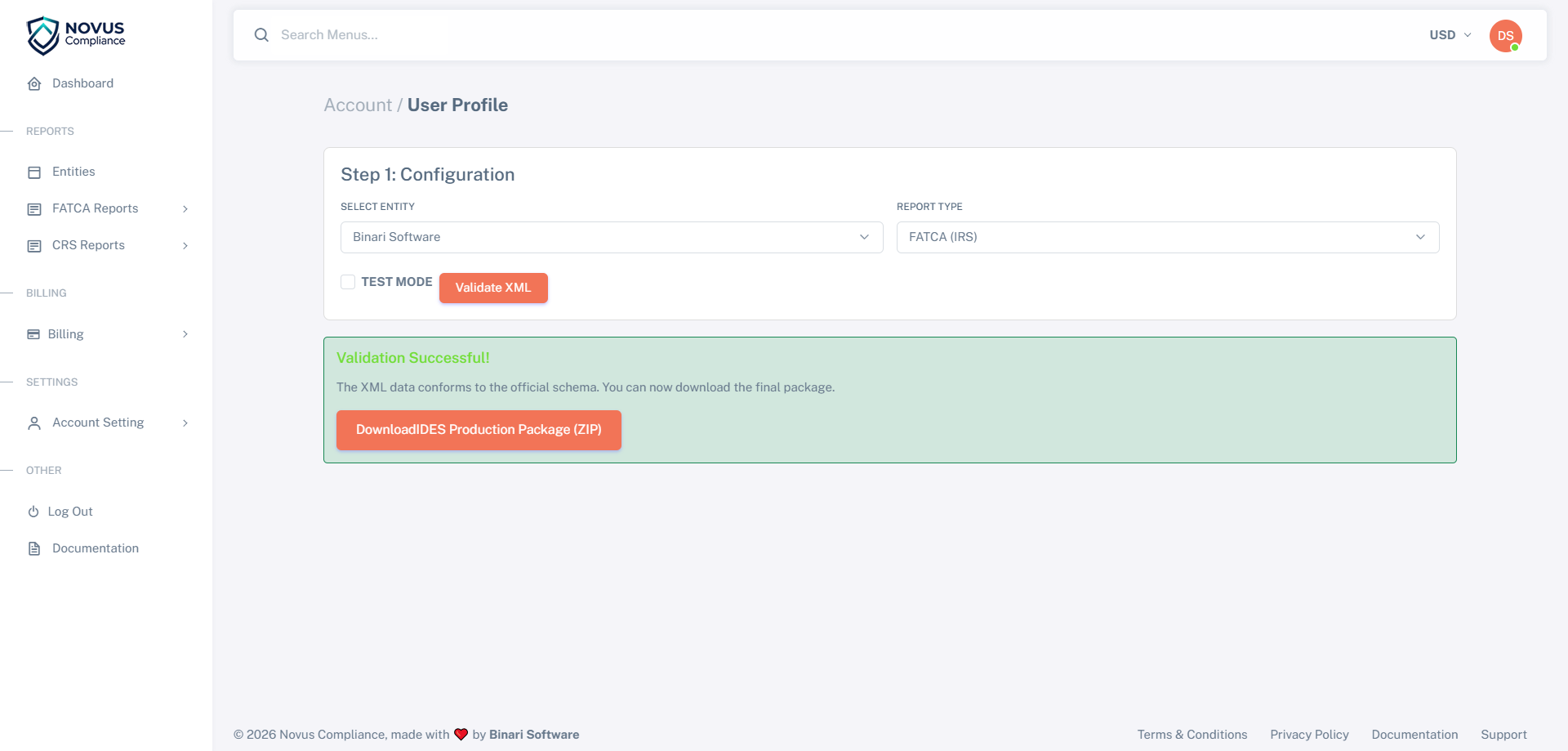
Click the "Validate" button. The system will check your data against thousands of Schema v2.0 rules and TIN formats.
If errors are found, the system will tell you exactly which Row # in your Excel file needs fixing.
10. Generate Final Report
Once validation is successful, you have two options:
- Download XML: If you are reporting to a local tax portal (Model 1).
- Create IDES Package: If you are reporting to the US IRS (Model 2).
11. Upload to Portal
Take your generated XML file or Encrypted ZIP package and upload it to your respective Tax Authority Portal or the IRS IDES Gateway.